From practice
A second life for my 2017 MacBook Pro – with AI
An old MacBook Pro, proprietary hardware and five kernel modules. With Codex and the work of the open-source community, a machine I had written off became a useful development computer again.

This post is a little different from my usual articles. I want to share an experience that particularly impressed me: how far collaboration with AI now extends – even to developing and adapting drivers and modules for the Linux kernel. Just a few months ago, I would hardly have thought it possible to carry out a project like this together with an AI assistant.
A little over a week ago, I brought an old MacBook Pro back into useful service with the help of AI. Together, we investigated hardware problems, adapted existing drivers, built Linux kernel modules, and developed a procedure to ensure these changes would continue working through future system updates. We have since tested this procedure across several kernel updates and during the upgrade from Fedora 44 to Fedora 45.
I was particularly surprised that AI could work at such a low technical level – directly on the software that connects an operating system to the physical hardware. It made me wonder: what further possibilities does this open up? Could we modernise older systems that interact closely with hardware, or solve technical problems that previously seemed too complex or too time-consuming?
At the same time, I became aware that these capabilities also have a downside. If AI can analyse and modify even complex, low-level software, it also makes it easier to discover and exploit security vulnerabilities. The security reports of recent weeks have already offered a glimpse of the new challenges this poses for IT security.
A new purpose for an old Mac
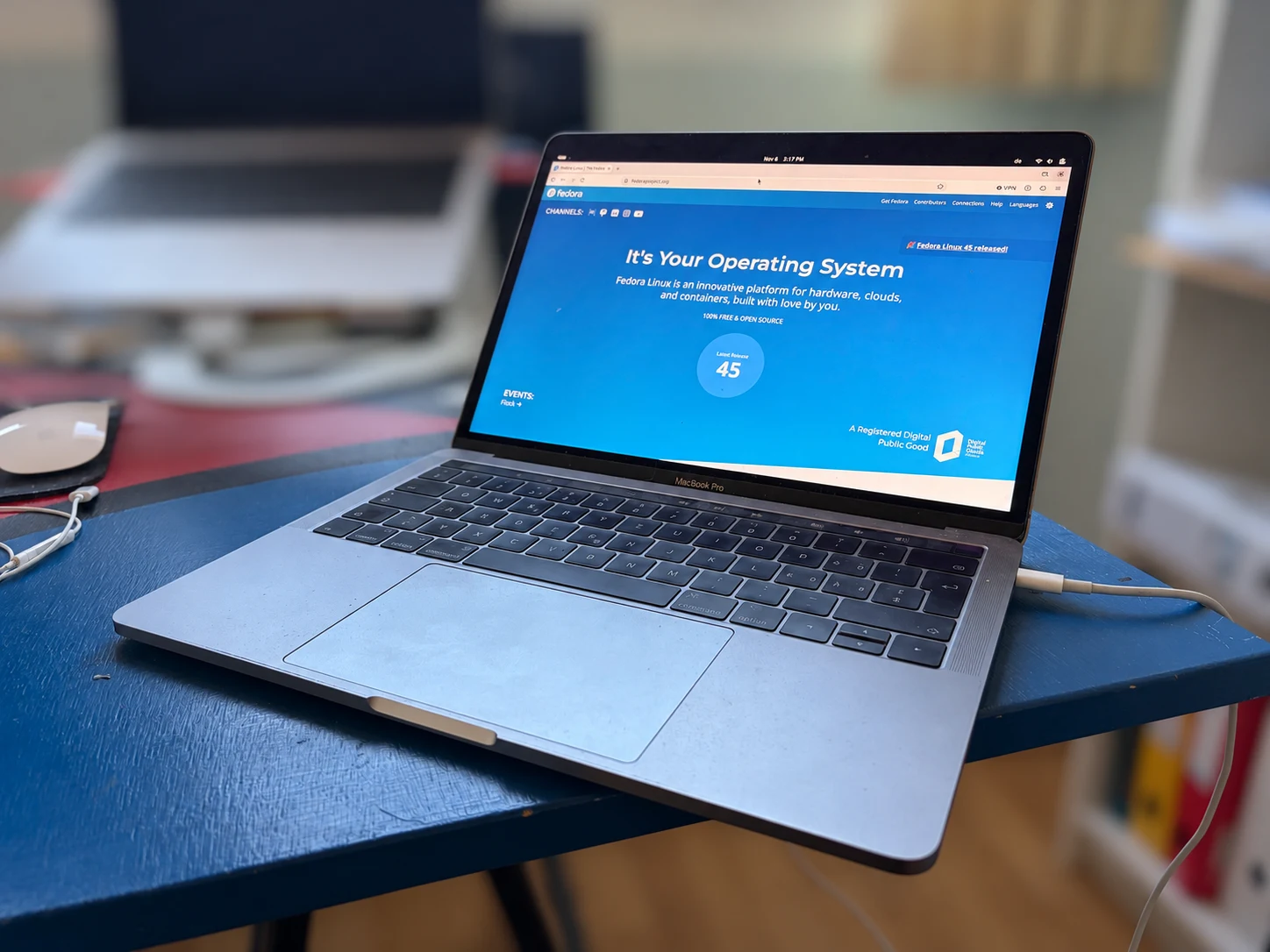
My starting point was a 2017 13-inch MacBook Pro with an Intel Core i5 processor (model MacBookPro14,2). It was still a perfectly capable piece of hardware, but I had effectively written it off. Apple’s official operating system upgrade path for this model ends with macOS Ventura.
I needed a separate development machine where additional AI coding agents could work independently of my main computer – with their own tools, desktop and browser. That gave me the idea of bringing the old MacBook back into use with Linux.
I was inspired by the Omarchy project and community efforts to bring Linux to older Intel Macs. I ultimately chose Fedora. I prefer the GNOME desktop environment, and Fedora seemed like a solid, well-established foundation for the experiment. This is a personal preference – Omarchy gave me the idea in the first place.
A working desktop is only the beginning
Installing Fedora was relatively straightforward, and I soon had a working desktop. But several essential features were either missing or unreliable. Apple’s proprietary hardware, particularly the Broadcom Wi-Fi chipset and the Touch Bar, made things considerably more complicated. A laptop that boots but has unreliable wireless networking, a non-functional Touch Bar, and problems waking from sleep is still a long way from being a practical development machine.
We worked through the problems one by one, investigating each issue and finding a solution together.
- Wi-Fi: Initially, wireless networking didn’t work at all. After we got it running, it was painfully slow at first. We analysed the Broadcom driver and adapted it so that the Wi-Fi connection works reliably both at startup and after waking from sleep. Later tests reached around 150 Mbit/s on my network – more than enough for the intended use.
- Sleep and USB-C: Waking the Mac from sleep was particularly troublesome. Sometimes it appeared to wake normally, but networking or the USB-C ports would stop working. We eventually developed a solution that saves the state of the affected hardware controllers before sleep and restores it when the Mac wakes up. We also resolved the problems with detecting external USB-C storage devices.
- Sound: The internal speakers were silent. We adapted an existing community-developed audio driver, compiled it for my Fedora kernel, and verified that sound continued working after restarts and sleep cycles.
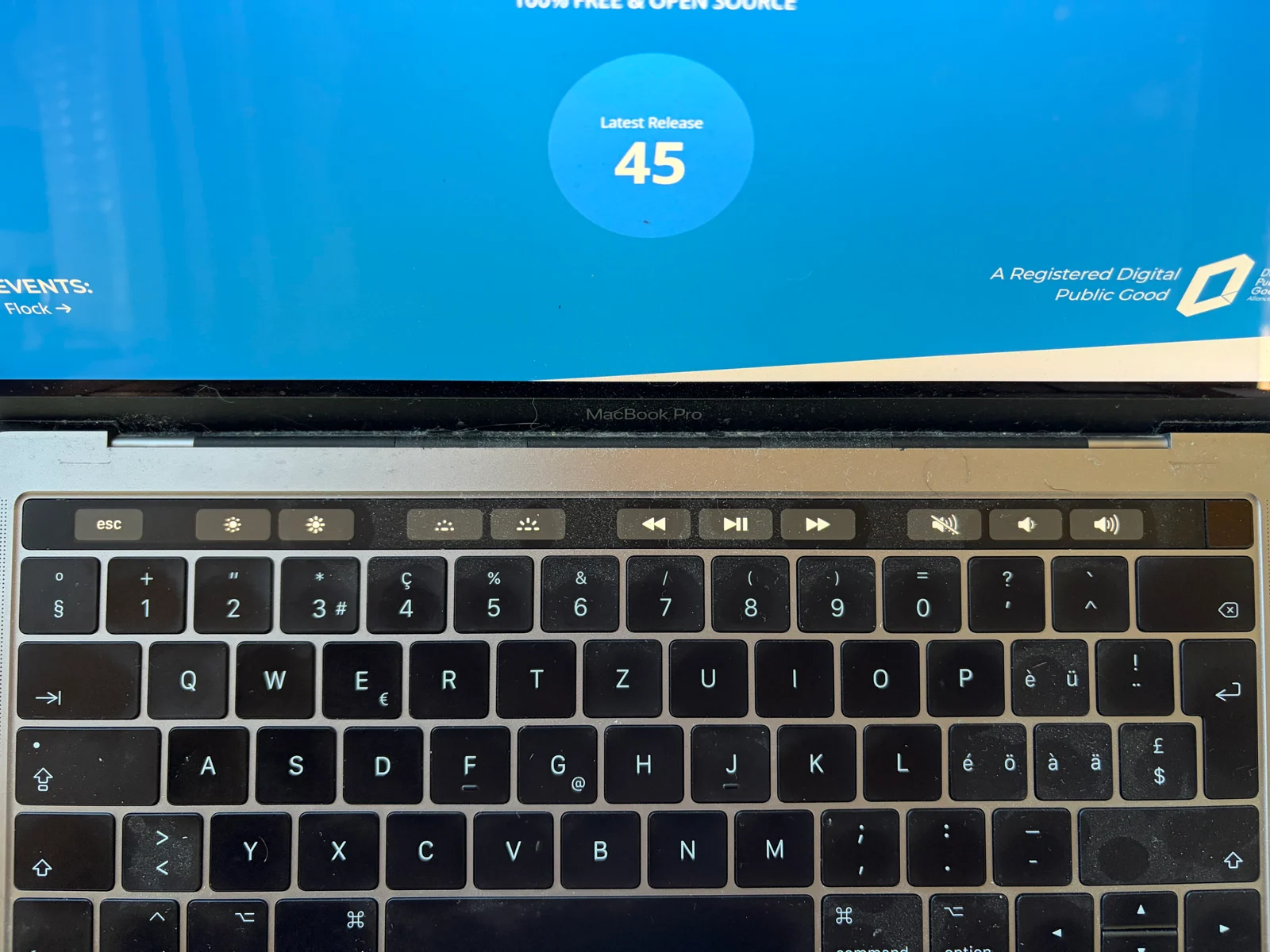
- Touch Bar: I wanted the familiar essentials: Escape, function keys, brightness, and volume controls. We got them working, including the ability to switch to function keys by holding Fn.
We also checked the camera, microphone, headphones, and Bluetooth. Some of these already worked with Fedora’s existing drivers. This was an important part of the process: understanding each problem before deciding whether anything needed to be changed.
The Touch Bar: proprietary hardware, open-source drivers
Apple’s proprietary Touch Bar offers a particularly clear example of the result. Two Linux kernel modules work together: apple_ibridge establishes the connection to Apple’s T1 bridge, while apple_touchbar provides the controls. We used drivers from the open-source community as the foundation, adapting and recompiling them for my Fedora installation.
Five modules, with Fedora’s own kernel
Much of the credit belongs to the open-source developers whose work made these fixes possible. Existing drivers, published patches, and community investigations provided the foundation. AI helped us discover and understand that work, adapt it to my particular machine, and bring the different pieces together.
In the end, our solution included five kernel modules. In simple terms, these are pieces of software that allow Linux to communicate with specific hardware. We compiled them for the exact Fedora kernel version in use and kept an older, working kernel available as a fallback. We didn’t need to build a custom Linux kernel; Fedora’s own kernel remained the foundation.
What Codex could do—and what I still had to test
What impressed me was the range of tasks Codex could handle. It inspected the machine, analysed diagnostic logs, examined source code, proposed changes, compiled kernel modules, and verified their dependencies. It also documented the installation and recovery procedures.
Having an AI assistant working directly in the development environment made a significant difference. It could continue complex investigations across many interconnected steps, rather than simply suggesting commands for me to execute.
My own involvement remained essential. I defined the goals, described the problems, reported what I could actually see or hear, tested physical controls, and restarted the machine when necessary. A build can complete successfully while the speakers remain silent. Someone still has to listen.
Keeping it working through updates
Getting everything to work was one challenge. Making sure it would continue working after future Fedora updates was another.
Linux kernel updates can introduce changes that affect custom kernel modules. Without proper preparation, a routine system update could leave the Mac with broken Wi-Fi, sound, or other hardware functionality.
Together with Codex, we developed a procedure to make these updates predictable and safe. Before switching to a new kernel, we prepare and compile the matching modules, verify their dependencies, and stop the process if any automated check fails. We also retain a known working kernel as a recovery option. Once the update is installed, I test the hardware during normal use before considering it successful.
We’ve already tested this procedure across successive kernel releases (7.2.13, 7.2.14, and 7.2.15). We also upgraded the system from Fedora 44 to Fedora 45, deliberately retaining the previously validated kernel rather than immediately switching to a new Fedora 45 kernel build.
Maintaining the result matters just as much as getting it to work once.
Source code and instructions
For anyone interested in the technical details, I’ve made the source code, patches, and build instructions available in macbookpro-2017-fedora on GitHub. The repository also documents the installation, maintenance, and recovery procedures, along with references and credits to the open-source projects that made this work possible.
rdesimone / macbookpro-2017-fedora Source code, patches and instructions on GitHub
Please note that the solution has only been tested on my own 2017 MacBook Pro. It may not work on other machines, even similar models, and is provided without warranty.
Back in useful service
A pleasant surprise is how smoothly and quickly this old Intel Mac runs with Fedora and GNOME. It now serves exactly the purpose I originally had in mind for it: a separate development environment where AI coding agents can work independently of my main computer.
The experience also made me wonder whether Linux could offer more people a practical path toward greater independence from Microsoft Windows. Of course, software requirements and hardware compatibility would need careful consideration. But that is a story for another post.
For now, I’ve given a computer I had almost given up on a new purpose. At the same time, I have once again been reminded of just how powerful AI has become and how fundamentally it will transform the world of work.